
Computer problems can be frustrating, especially when a device suddenly becomes slow, freezes, or refuses to start. Fortunately, many common issues can be solved with a few simple troubleshooting steps. Before opening the computer or replacing any parts, identify the problem carefully.
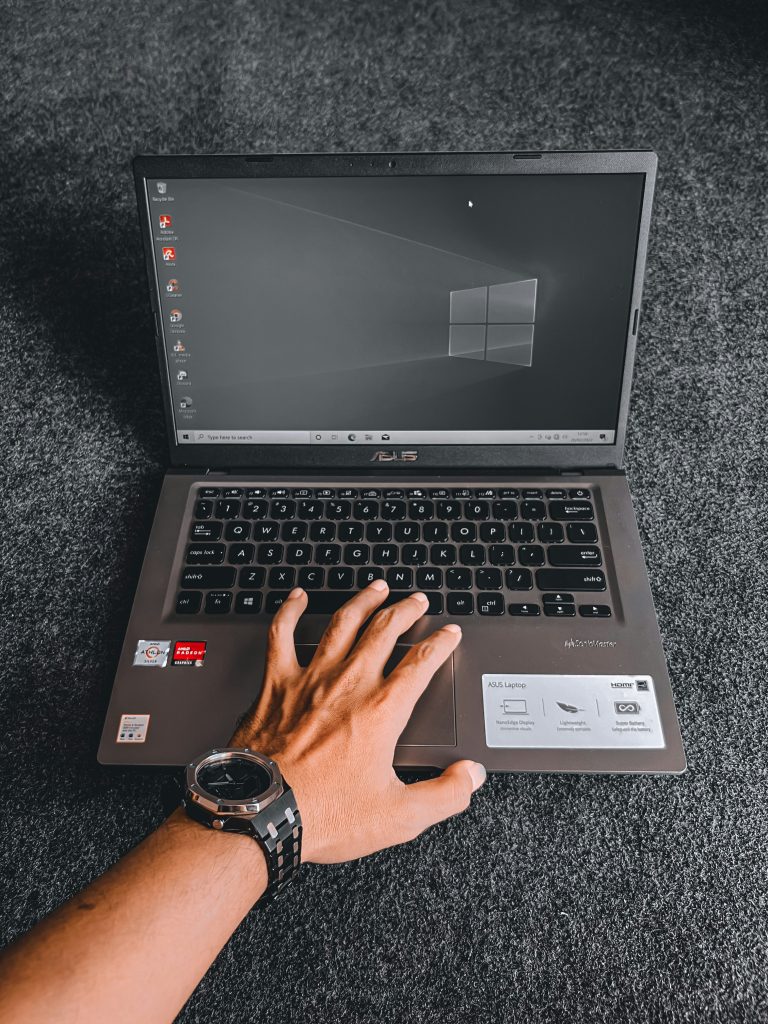
Step 1: Identify the Problem
First, observe what the computer is doing. Check whether it will not turn on, runs slowly, freezes, displays an error message, or has problems with the keyboard, mouse, screen, or internet connection. Knowing the exact symptom makes troubleshooting easier.
Step 2: Check the Power and Connections
Make sure the power cable or charger is connected properly. For a desktop, check the connection between the computer, monitor, and power outlet. For a laptop, connect the charger and check whether the charging indicator appears.
Step 3: Restart the Computer
If the computer runs but behaves strangely, restart it. A restart can clear temporary software problems and may restore normal performance
Step 4: Check for Software Problems
Install available operating-system updates and remove unnecessary applications. Run a trusted security scan if you suspect malware. Also check whether the storage drive is nearly full.
Step 5: Check for Overheating
Dust and blocked ventilation can cause overheating. Turn off the computer, unplug it, and keep its air vents clear. Avoid using it on soft surfaces that block airflow.
Step 6: Get Professional Help
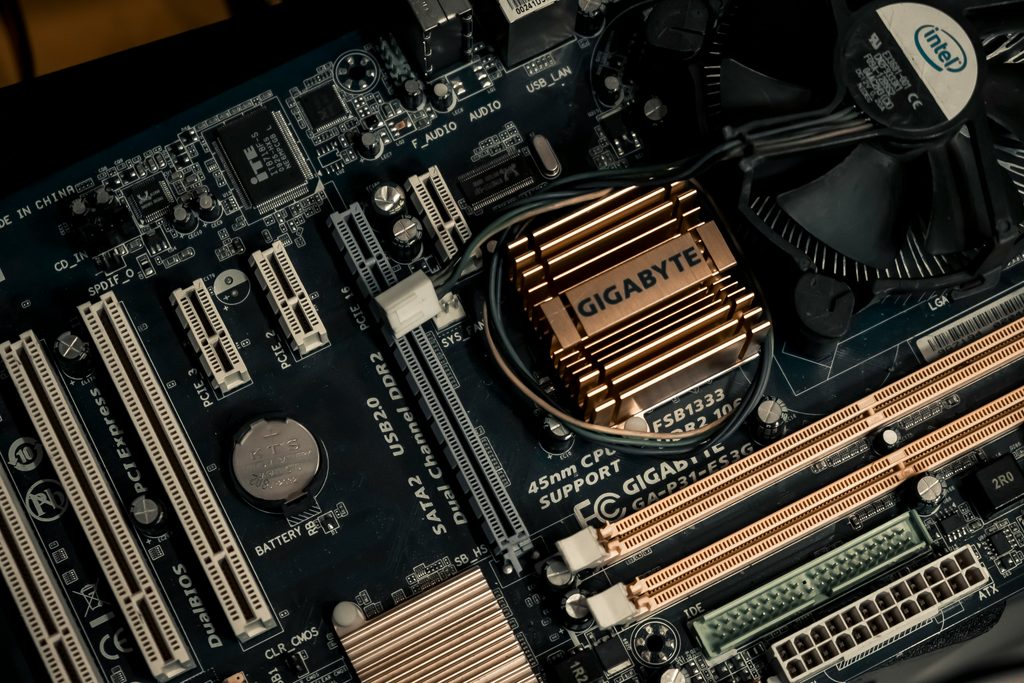
If the problem continues, especially when there is smoke, a burning smell, liquid damage, or suspected internal hardware failure, stop using the computer and contact a qualified technician.
Conclusion
Repairing a computer starts with patience and careful troubleshooting. By following these steps, you can safely solve many basic problems and know when you need professional help.